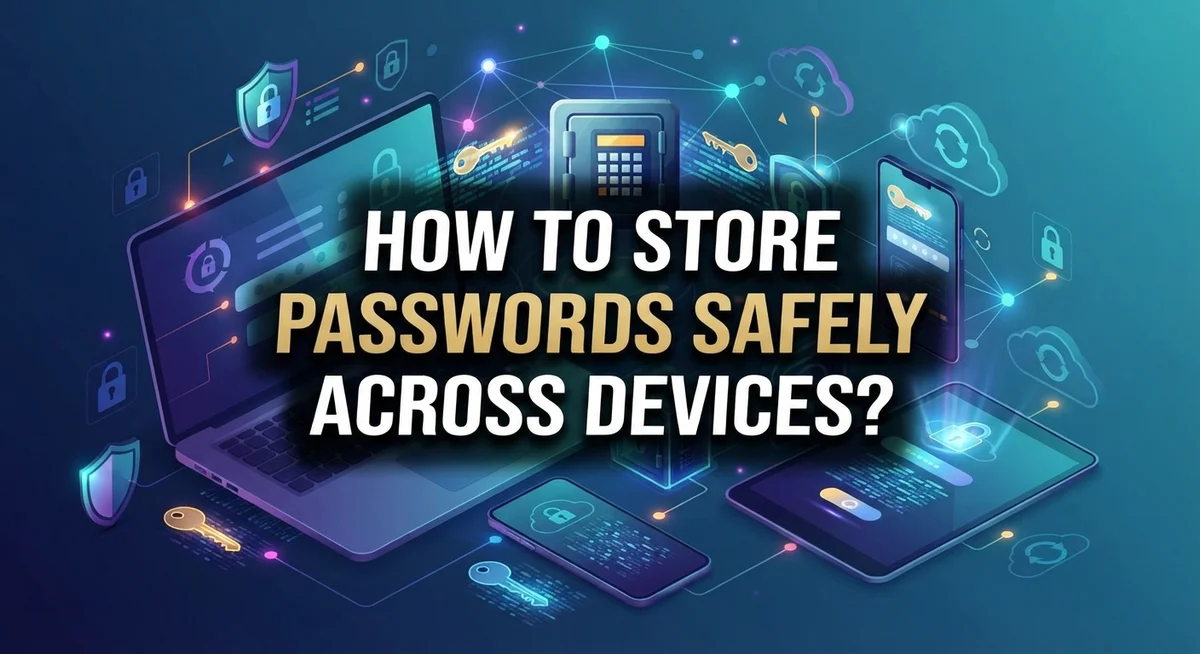
How to Store Passwords Safely Across Devices?
Do you use the same password for many accounts? You are not alone. But this habit puts your personal data at risk every single day.
Most people struggle to remember dozens of complex passwords. So they reuse simple ones across banking apps, emails, and social media.
This is a huge security risk. Hackers count on this exact behavior to break into multiple accounts at once.
The good news? You do not need a perfect memory to stay safe online. Password managers solve this problem completely.
These tools encrypt your passwords and store them in one secure place. They also sync your logins across your phone, laptop, and tablet automatically.
This means you get instant access everywhere, without typing a single password twice.
In this guide, we will show you how to store passwords safely across all your devices. You will learn the difference between dedicated password managers and built in options like Apple or iCloud.
We will also cover common mistakes people make, like saving passwords on shared devices. By the end, you will know exactly how to protect your digital life with confidence.
In a Nutshell
Here is a quick summary to help you store passwords safely.
-
Use a password manager. It encrypts your passwords and syncs them across all your devices automatically.
-
Skip shared devices. Never save passwords on public or shared computers. This puts your accounts at risk.
-
Turn on autofill. This feature saves time and reduces typing errors when you log in.
-
Try built in options. Tools like Apple or iCloud password managers work well for most people. They are safe and easy to use.
-
Explore free tools too. Options like KeePass offer strong encryption without any cost.
-
Avoid weak passwords. Do not repeat the same password across different accounts. A good password manager can generate unique, strong passwords for you instantly.
Following these simple steps keeps your accounts safe. You get easy access to your passwords, no matter which device you use. This small change makes a big difference for your online security.
Why Cross-Device Password Security Matters
Your passwords protect everything online. Your email, banking, social media, and work accounts all depend on strong security. When you use the same password everywhere, one breach puts all your accounts at risk. This is why cross-device password security matters so much today.
Most people face a real problem. You need different passwords for dozens of services. Your brain cannot memorize 50+ complex passwords. So people either reuse passwords or write them down in unsafe places. Both options leave you vulnerable to hackers.
Cross-device security means your passwords stay safe everywhere you log in. Whether you use your phone, laptop, or tablet, your login information stays encrypted and protected. You do not have to worry about which device you are using or whether it is secure.
Hackers actively target devices to steal passwords. They use malware, phishing emails, and network attacks to find your login details. If you store passwords in plain text or use simple passwords, you become an easy target. Strong encryption makes your passwords useless to anyone who steals them.
The real danger grows when you use multiple devices. You might save a password on your home computer, then need it on your phone. You might type it into a public WiFi network. Each time you enter or store a password, you create a new opportunity for theft. Proper password storage eliminates these risky moments.
Cross-device security also protects your identity and finances. Hackers who access your email can reset passwords on every other account. They can drain bank accounts, steal personal information, or commit fraud in your name. Protecting your passwords across all devices prevents these disasters.
The solution is simple. Use a secure system that encrypts your passwords and syncs them safely across your devices. This way, you get strong security without the stress of remembering complex passwords or typing them repeatedly. Your digital life stays protected on every device you own.
Understanding Password Managers and Encryption
Password managers work by storing all your login information in one encrypted vault. Think of it like a digital safe that only you can open with a master password. When you need to log in somewhere, the manager fills in your username and password automatically.
Encryption is the security backbone here. Your password manager uses mathematical algorithms to scramble your passwords into unreadable code. Only someone with your master password can decode them back into usable information. This means even if hackers break into the service, they cannot read your actual passwords.
How encryption protects your data across devices is straightforward. When you sync passwords between your phone, tablet, and computer, the manager encrypts them during travel. They stay scrambled the entire time they move through the internet. Once they arrive on your new device, they decrypt only when you unlock your manager with your master password.
The master password is critical. This single password protects everything inside your vault. Make it strong and unique. Never share it with anyone. If someone gets your master password, they access all your stored passwords.
Built in managers versus standalone tools both use encryption, but they work differently. Operating system managers like Apple’s iCloud Keychain integrate directly into your device. They sync passwords through Apple’s secure servers. Standalone password managers are separate apps you download and install. They often offer more features and work across different device types.
Free options exist and provide real security. Many free password managers use the same encryption methods as paid versions. The difference usually involves storage limits or fewer premium features, not weaker protection.
Your passwords travel encrypted, stay encrypted while stored, and decrypt only when you need them. This three layer approach keeps your login information safe whether you access it from home or on the go. The encryption happens automatically without you thinking about it.
Step-by-Step: Setting Up Secure Password Sync
Setting up secure password sync takes just a few simple steps. Start by choosing a password manager that fits your needs. You have built in options through your device’s operating system, standalone services, or free alternatives available online. Pick one that supports all your devices.
Next, create a strong master password. This single password unlocks all your stored logins. Make it long and unique. Use a combination of uppercase letters, lowercase letters, numbers, and symbols. Never share this password with anyone. Write it down and store it somewhere safe if you need to remember it.
Install the password manager on each device you use. This includes your phone, tablet, laptop, and desktop computer. Most services guide you through installation with clear prompts. Follow each step carefully.
Enable sync features after installation. Your password manager will ask permission to sync across devices. Accept this to ensure your passwords appear everywhere you need them. Sync usually happens automatically in the background.
Set up autofill functionality next. This feature lets your passwords populate login forms without manual typing. Enable it in your password manager settings and in your device settings. Autofill saves time and reduces typing mistakes.
Test the sync by saving a new password on one device. Wait a few moments, then check another device. Your new password should appear there automatically. This confirms everything works correctly.
Adjust security settings to your comfort level. Many password managers offer options like fingerprint login or facial recognition. These add convenience while keeping your master password protected. Enable two factor authentication if available.
Finally, start migrating your existing passwords into the manager. You can import passwords from your browser or enter them manually. Delete old saved passwords from browsers and devices once they’re safely stored in your manager.
Check your setup regularly. Update your master password every few months. Review connected devices and remove any you no longer use. Keep your password manager app updated to maintain security.
Best Practices for Autofill and Cross-Platform Access
Autofill functionality saves time and reduces typing errors when you log into accounts across your devices. Enable autofill in your password manager to streamline your daily workflow. Most managers let you turn this on through settings or preferences.
When you enable autofill, your password manager recognizes login forms on websites and apps. It automatically fills in your username and password with a single tap or click. This feature works on phones, tablets, laptops, and desktops when sync is active.
Cross-platform access means your passwords follow you everywhere. Once you store a password in your manager, it becomes available on all your connected devices. You log into your manager on each device, and the sync feature handles the rest automatically. Your login information stays encrypted during this process.
Set up autofill by opening your password manager’s settings. Look for an autofill or browser extension option. Grant the necessary permissions so the manager can interact with websites and apps. On mobile devices, go to your system settings and select your password manager as the autofill provider.
Test autofill on a low-stakes account first, like a shopping site. Visit the login page and watch your credentials populate automatically. Verify that the right username and password appear before confirming the login.
Customize autofill behavior to match your preferences. Some managers let you choose which fields autofill and which require manual entry. You can also set autofill to trigger automatically or require your confirmation each time.
For security, disable autofill on shared computers. If someone else uses your laptop, they shouldn’t have automatic access to your accounts. On personal devices, autofill is safe and convenient.
Keep your master password strong and private. Never share it, even with family members who use your devices. Each person should have their own account and master password for maximum security and privacy.
Common Mistakes That Compromise Password Safety
Many people make simple mistakes that put their passwords at serious risk. Understanding these errors helps you protect your accounts better.
Storing passwords in your browser is a common problem. Most web browsers offer to save your passwords when you log in. This feels convenient, but it creates a weak link in your security. Browser storage lacks the strong encryption that dedicated solutions provide. If someone gains access to your device, they can often view these saved passwords easily.
Using the same password across multiple services is another major mistake. When you reuse passwords, one breach affects all your accounts. A hacker who steals your password from one site can try it on your email, banking apps, and social media. This domino effect puts everything you own at risk.
Saving passwords in unencrypted notes or documents is extremely dangerous. Some people write passwords in text files, email drafts, or note apps. These locations offer zero protection. Anyone with device access can read them instantly.
Sharing devices without protecting your passwords creates real problems too. Family members or roommates can see your login information if it sits unprotected on a shared computer. This applies to work devices as well. Your passwords should stay private to you alone.
Ignoring password strength is also risky. Weak passwords with simple patterns get cracked quickly. Passwords like “123456” or “password” offer almost no protection, even on secure services.
Not syncing passwords securely across devices leaves gaps in your security. When you use different devices but store passwords only on one, you either reuse passwords or use weaker ones on other devices. This creates vulnerabilities.
Failing to update your master password regularly is another oversight. If you use a password manager, your master password deserves periodic changes. This limits damage if someone discovers it.
Finally, never writing down passwords physically unless absolutely necessary. Papers get lost, stolen, or found by others. Digital encryption is always safer than ink on paper.
Troubleshooting Sync and Access Issues
When your passwords won’t sync between devices, the first step is to check your internet connection. Both devices need stable, active connectivity to communicate with your password manager’s servers.
Verify your master password is correct on each device. If you recently changed it, make sure you’re using the updated version everywhere. An incorrect master password prevents sync from working properly.
Check that you’re logged into the same account on all devices. Password managers sync through your account, so using different email addresses or accounts stops synchronization completely. Log out and back in with the correct credentials if needed.
Restart your password manager application on both devices. Close it completely, then reopen it fresh. This simple step often resolves temporary sync glitches that happen during normal use.
Look for sync settings within your password manager. Some managers require you to manually enable sync features in the settings menu. Make sure sync is toggled on and not disabled accidentally.
Clear your app cache if sync continues failing. Cached data sometimes interferes with synchronization processes. Your password manager’s settings usually include an option to clear cache without deleting your stored passwords.
Update your password manager to the latest version available. Older versions may have bugs that prevent proper syncing. Check your device’s app store for any pending updates.
If one device can’t access passwords while another works fine, that device may have a permissions issue. Check that your password manager has permission to access your device’s storage and internet connection in your system settings.
Try removing and reinstalling the password manager on the problematic device. This fresh installation often fixes sync problems that updates alone won’t resolve.
Contact your password manager’s support team if issues persist. Provide details about which devices won’t sync and what error messages appear. They can investigate account level problems or server issues on their end that you cannot fix yourself.
Final Thoughts
Storing passwords safely across devices does not need to feel complicated. A good password manager handles the hard work for you. It encrypts your data and keeps everything organized in one place.
The biggest takeaway is simple: never store passwords in unprotected spots. Avoid plain text files, sticky notes, or shared devices without protection. These habits create easy entry points for anyone trying to access your accounts.
Choose a method that fits your lifestyle. Some people prefer a trusted password manager with cloud sync. Others like built in options from Apple or similar system tools. Both choices work well when used correctly.
Free tools like KeePass offer solid protection without any cost. Premium managers add extra features like cross device sync and automatic backups. Pick what matches your needs and budget.
Consistency matters more than perfection. Use unique passwords for every account you own. Let your password manager generate these passwords instead of creating them yourself. This removes guesswork and human error from the process.
Sync your passwords across all your devices regularly. This keeps your logins updated everywhere you need them, from your phone to your laptop. A smooth sync process saves time and reduces frustration.
Review your password practices every few months. Check for weak passwords or repeated ones across different sites. Update anything that looks outdated or vulnerable to attacks.
Security is an ongoing habit, not a one time task. Small consistent actions build strong protection over time. Set reminders to check your password health regularly.
Trust your password manager to do the heavy lifting. It stores, encrypts, and syncs your data safely. Your job is to use it correctly and stay alert to risks.
In the end, safe password storage comes down to smart choices. Pick a reliable manager, avoid risky habits, and stay consistent. These simple steps protect your accounts and give you peace of mind across every device you use.
Frequently Asked Questions
Can I use my browser to save passwords safely?
Browser password storage offers basic convenience. However, it has limits. Your browser stores passwords with lighter encryption than dedicated password managers use. If someone accesses your device, they may reach these passwords more easily.
A dedicated password manager provides stronger protection. Browsers work best as a backup option, not your main solution. Many security experts recommend using a password manager instead for sensitive accounts.
What makes a password manager different from browser storage?
Password managers use military-grade encryption to protect your data. They generate strong passwords automatically and store them in a secure vault. You only need to remember one master password to access everything.
Sync happens automatically across your devices. When you log into a service on your phone, that password becomes available on your laptop instantly. Browser storage cannot match this level of coordination and security.
Are built-in device managers like iCloud Keychain safe?
Yes, built-in operating system managers are generally reliable. Apple’s iCloud Keychain and similar tools use strong encryption. They sync passwords across your devices seamlessly.
These options work well if you stay within one ecosystem (all Apple devices, for example). They become less helpful if you mix devices from different manufacturers. A dedicated password manager bridges that gap.
Should I use free or paid password management tools?
Both free and paid options offer solid security. Free tools often provide core features like password storage and autofill. Paid versions typically add extra features like advanced reporting or priority support.
Your choice depends on your needs. Simple users may find free options sufficient. Those managing many accounts or sharing passwords with family might prefer premium features.

Dillip is the founder and editor of MediaModHub.com, a passionate tech enthusiast dedicated to helping readers make informed decisions through honest product reviews, detailed comparisons, and practical buying guides. When he’s not testing the latest gadgets, he’s researching the tech trends that matter most to everyday consumers.