How to Tell if Your Device Software Is Out of Date?
Your phone feels a bit slower than before. Apps take longer to open. Something just seems off.
This could mean your device software is out of date. Old software can slow down your device. It can also open the door to security risks.
Many people ignore update notifications. They think their device is fine without checking. But outdated software puts your personal data at risk.
Hackers often target devices running old software. Manufacturers release updates to patch these weak spots. Skipping updates means missing important security fixes.
The good news? Checking your software status takes just a few minutes. You do not need special skills or tools.
This article will show you exactly how to check your device for updates. We will cover simple steps for Android devices. You will also learn how to spot fake update alerts.
We will explain what happens when your device reaches its end of life. You will understand why regular checks matter so much.
By the end, you will know how to keep your device safe and running smoothly. Let us get started.
In a Nutshell
Here’s a quick recap of what you need to know:
-
Check your settings first. Go to Settings, then System, then Software Updates to see your current status. This simple step tells you everything.
-
Old software means security risks. Devices without updates become easy targets. Hackers look for these gaps to exploit.
-
No updates available doesn’t mean you’re current. Your device might have reached its end of life. Always check the manufacturer’s support page to confirm.
-
Antivirus apps are not a substitute. They cannot fix the deeper security holes that only official updates can patch. Your operating system needs its own updates.
-
Verify before you install. Only trust update prompts from official settings menus. Suspicious pop ups could be malware in disguise.
-
Make checking a habit. A few minutes every month keeps your device safe and running well. This small effort protects your personal data long term.
Staying on top of updates is easy once you know where to look. It also saves you from bigger headaches later.
Why Software Updates Matter for Your Device’s Security
Software updates do far more than add new features to your device. They provide critical security patches that protect your personal information from hackers and malware. When developers discover security weaknesses, they release updates to close those gaps before criminals can exploit them.
Outdated software leaves your device vulnerable. Hackers actively search for devices running old versions because they know about the security holes. Your banking information, passwords, and photos become easier targets when your software is not current.
Security updates work like locks on your doors. Each update strengthens the defenses around your data. Without regular updates, those defenses weaken over time. Even if you use strong passwords and antivirus apps, outdated operating systems have fundamental flaws that only official updates can fix.
Your device’s performance also depends on current software. Older versions can slow down your phone or tablet as systems become less efficient. Updates optimize how your device runs and often improve battery life too.
Many people think antivirus apps replace the need for system updates. This is a common misconception. Antivirus software works on top of your operating system, but it cannot fix deep security problems built into outdated software itself. You need both working together.
Updates also protect against new types of threats. Security experts constantly discover fresh attack methods. Developers respond by releasing patches through software updates. If you skip updates, your device cannot defend against these newer threats.
The longer you wait to update, the more risk you take. Criminals focus on devices they know have unpatched vulnerabilities. By keeping your software current, you make your device a less attractive target and keep your personal data safer.
Signs Your Device Software May Be Outdated
Your device shows several warning signs when its software falls behind. Learning to spot these signs helps you stay protected and keep your system running well.
Frequent crashes and freezes are common indicators. When apps stop responding or your device restarts without warning, outdated software is often the culprit. The operating system struggles to manage newer apps designed for current software versions.
Slow performance signals trouble. Your device may take longer to open apps, load files, or switch between programs. This happens because old software cannot handle modern tasks efficiently. You might notice your battery drains faster too, since the system works harder to process everyday functions.
Security warnings appear when your device is vulnerable. Your browser might display alerts about unsafe connections. You could receive notifications about unverified apps or suspicious activity. These warnings increase dramatically with outdated software because security patches have not been applied.
Update notifications that won’t disappear tell you something needs attention. Your device keeps reminding you about available updates because critical patches are waiting. Ignoring these prompts leaves gaps in your protection.
Compatibility issues emerge when apps refuse to install or run. Developers create apps for current software versions. Older devices cannot support these newer applications, creating frustration and limiting your options.
Unusual behavior includes unexpected app closures, strange error messages, or features that suddenly stop working. These problems often stem from software conflicts that updates would resolve.
No updates available in your settings does not mean you are current. Your device might have reached its end of life, meaning the manufacturer stopped releasing updates. Check your device’s support timeline to confirm whether updates should still be coming.
Pay attention to these signs. They tell you when action is needed to keep your device safe and functional.
How to Check for Software Updates on Android Devices
Opening the Settings app is your first step. Tap the gear icon on your home screen or app drawer. You’ll see a list of options that control how your device works.
Look for the word “System” in your Settings menu. This section holds all the important information about your device’s software. Tap on it to see more options.
Find “Software Updates” or “System Updates” within the System section. The exact name varies depending on your device model and Android version. This is where your device checks for and installs new software.
Tap on “Software Updates” to see your current status. Your device will display whether updates are available or if you’re already running the latest version. The screen shows your current Android version number as well.
If an update is available, you’ll see a button to download and install it. Follow the on screen instructions carefully. Your device may restart during this process, so make sure your battery has enough charge first.
Some devices let you check updates through “About Phone” or “About Device” instead. Go to Settings, then scroll down to find this option. Tap it and look for “Android Version” or “Build Number” to see what you’re running.
Keep your WiFi connection strong during updates. A weak connection can interrupt the process and cause problems. Use a stable network and stay near your router.
Check for updates at least once every month. Set a reminder on your calendar if you tend to forget. Regular checking ensures you catch security patches quickly.
If your device shows no updates available but you suspect it’s outdated, check your manufacturer’s website. They publish support timelines showing when updates stop for each model. This tells you if your device has reached its end of life.
How to Check for Software Updates on Other Common Devices
Beyond Android phones, many other devices need regular software checks. Tablets and iPads follow similar update paths. Open Settings, tap General, then Software Update. Your tablet will show whether updates are available. Install them right away if you see an update option.
Smart TVs require a different approach. Navigate to your TV’s main menu using the remote. Look for Settings or System options. Find Software Update or System Update in that menu. Your TV will scan for available updates automatically. Some newer models update in the background without your action.
Laptops and computers have their own update systems. Windows devices should check Settings, then Update and Security. Mac computers use System Preferences and Software Update. Both systems can set automatic updates so you never miss critical patches. Let your computer restart when prompted after updates complete.
Smartwatches and fitness trackers often update through companion apps on your phone. Open the app connected to your device. Check for a settings or device section. Updates usually install wirelessly when your watch connects to your phone. Keep your watch charged during this process.
Gaming consoles need attention too. Go to System Settings on your device. Select System Software Update or similar options. The console will check for new versions. Install any available updates before playing online games.
IoT devices like smart home hubs and security cameras typically update through their apps. Open the manufacturer’s app on your phone. Find your device in the app’s menu. Check for available updates in the device settings section.
The key principle stays the same across all devices: check regularly and install updates promptly. Don’t wait for problems to appear. Set a monthly reminder to verify your devices are current. This simple habit keeps your entire digital ecosystem secure and functioning properly.
Understanding End-of-Life (EOL) and What It Means for Your Device
End of Life (EOL) means the date when a manufacturer stops supporting a device. Once EOL arrives, the company stops releasing security updates and fixes. Your device becomes vulnerable after this point.
Understanding EOL matters because security threats grow rapidly once updates stop. Hackers target outdated systems constantly. Without patches, your personal data faces real danger.
Manufacturers set EOL dates based on device age and model. Smartphones typically receive updates for 3 to 5 years. Older devices reach EOL faster than newer ones. Check your device maker’s official website to find your specific EOL date.
What happens when your device reaches EOL? Updates stop coming completely. Your device may still work, but security gaps expand over time. Apps may refuse to install because they need newer software versions. Your device becomes incompatible with modern services.
The difference between EOL and end of support matters. End of support means limited updates only. EOL means no updates at all. Some devices get security updates after end of support but before EOL. Others jump directly to EOL.
You can find your device’s EOL status by searching online with your device model and “end of life date.” Manufacturer support pages list these timelines clearly. Some devices have longer support periods than others.
If your device approaches EOL, plan ahead. You don’t need to replace it immediately, but understand the risks. Continue using security best practices like strong passwords and careful app downloads. Consider upgrading when your device reaches EOL officially.
Ignoring EOL dates puts your security at risk. Malware creators specifically target EOL devices because they know updates won’t fix vulnerabilities. Taking EOL seriously protects your information and keeps your device safer for longer.
Common Mistakes That Leave Devices Vulnerable
Ignoring update notifications is one of the biggest mistakes people make. Your device sends these alerts for a reason. They contain security fixes that protect your personal information from hackers and malware threats.
Many users assume that if their device shows no available updates, everything is current and safe. This is incorrect. Your device might not display updates properly, or you might need to check through alternative settings paths. Always verify by visiting your manufacturer’s official website to confirm your current software version.
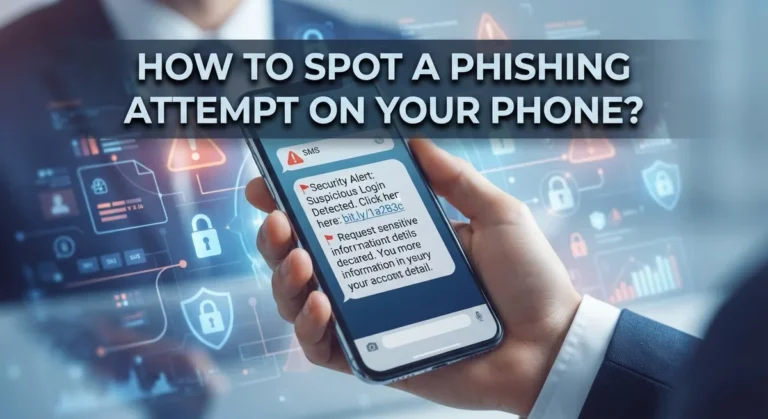
Trusting suspicious update notifications puts your device at serious risk. Scammers create fake update prompts that look legitimate. These fraudulent notifications can install malware instead of real updates. Always check for updates only through your official Settings menu, never through pop up windows or third party sources.
Another common error is delaying security updates while waiting for feature updates. Security patches are critical even if they don’t add new features. They fix vulnerabilities that criminals actively exploit. Installing them promptly is more important than waiting for the next major release.
Weak internet connections during updates cause corruption and problems. People often start updates on unstable WiFi and then move away from the router. This interruption can leave your device partially updated and unstable. Always ensure strong connectivity before beginning any update process.
Forgetting to check update status regularly leaves your device vulnerable for months. Set a monthly reminder to check your settings. This simple habit prevents security gaps from developing.
Finally, many users don’t realize their device has reached end of life. Once manufacturers stop supporting a device, no more updates arrive. Your device becomes increasingly exposed to threats. Check your device model’s EOL date now. If it’s approaching, start planning for a replacement before updates stop completely.
Troubleshooting: What to Do When Updates Won’t Install
When an update fails to install, don’t panic. This happens more often than you think, and most problems have simple solutions.
Start with the basics first. Check your internet connection. Updates need a stable, strong connection to download and install properly. Switch to WiFi if you’re using mobile data. Mobile networks often drop during large file transfers, which corrupts the update. Wait a few minutes, then try again.
Next, restart your device completely. Power it off, wait 30 seconds, then turn it back on. This clears temporary files that might block the installation process. Many stuck updates resolve themselves after a fresh restart.
Clear storage space on your device. Updates need room to unpack and install. If your storage is nearly full, the installation fails. Delete old photos, videos, or apps you don’t use anymore. Aim for at least 2 to 3 gigabytes of free space before attempting the update again.
Try accessing the update settings through a different path. On Android devices, go to Settings, then tap System, then System Update. If that doesn’t show available updates, try Settings, then About Phone, then Android Version. Different device manufacturers place these options in slightly different locations.
If updates still won’t install, try connecting your device to a computer. Many devices have companion software or Smart Switch tools that allow you to update through a USB connection. This bypasses WiFi problems entirely and provides a more stable installation method.
Wait before forcing anything. Don’t restart during an update or remove the battery. This causes serious damage. If an update appears stuck, give it at least 30 minutes to complete in the background.
When nothing works, contact the manufacturer’s support team. They can diagnose why your specific device refuses updates and provide solutions tailored to your situation.
Final Thoughts
Keeping your device software current does not need to feel hard. A few simple checks each month can save you from major headaches later.
Your device gives you clues all the time. Slow performance, odd notifications, or apps that crash often point to outdated software.
Make it a habit to check your settings menu often. This small action keeps your device safe from threats that target old systems.
Security matters more than new features. Even if you do not care about the latest design changes, security patches protect your personal data every day.
Remember that manufacturers eventually stop supporting older devices. Once this happens, no amount of checking will bring new updates back.
Plan for this reality early. Know your device’s timeline so you are never caught off guard by a sudden lack of support.
Trust only official sources for update information. Your device settings menu remains the safest place to check status and install anything new.
Avoid shortcuts that promise faster updates from outside links or pop ups. These often lead to malware instead of genuine improvements.
Staying informed protects you long term. A device that receives regular updates runs smoother and stays safer against new threats.
Think of software updates as routine maintenance, much like checking oil in a car. Small consistent actions prevent bigger problems down the road.
If you ever feel unsure about your device’s status, check twice rather than assume. This simple habit builds strong digital safety over time.
Your data and privacy depend on this basic care. Outdated software creates gaps that bad actors love to exploit.
Take a few minutes today to check your device. That small step now saves you time, money, and stress later.
Good software habits lead to a longer device lifespan and better peace of mind. Stay alert, stay updated, and stay protected.
Frequently Asked Questions
Why does my device say no updates are available?
Your device may show no available updates for several reasons. First, your software might already be current. Second, your device could have reached its end of life date. Manufacturers stop releasing updates for older models after a certain period.
Check your device’s support timeline on the manufacturer’s website. This tells you when updates will stop arriving. If your device is past this date, no updates will appear even though security risks exist.
How often should I check for updates?
Check your settings menu at least once per month. Many people forget this simple habit and leave their devices vulnerable for months. Set a calendar reminder on the first day of each month.
Regular checks catch security patches quickly. These patches fix holes that hackers exploit. Don’t wait for notifications to appear on their own.
Can I trust update notifications that pop up randomly?
Not always. Scammers create fake update prompts to trick you into downloading malware. Only trust updates from your device’s official settings menu.
Never click update links from emails, text messages, or random websites. Go directly to your Settings app instead. Open System or About Phone to verify updates through official channels.
What if my device is too old to receive updates anymore?
Older devices eventually stop receiving updates. This happens when manufacturers end support. Your device becomes more vulnerable to security threats over time.
Consider whether your device still meets your needs. An unsupported device poses real risks. Plan ahead by knowing your device’s support timeline before updates suddenly stop arriving.

Dillip is the founder and editor of MediaModHub.com, a passionate tech enthusiast dedicated to helping readers make informed decisions through honest product reviews, detailed comparisons, and practical buying guides. When he’s not testing the latest gadgets, he’s researching the tech trends that matter most to everyday consumers.